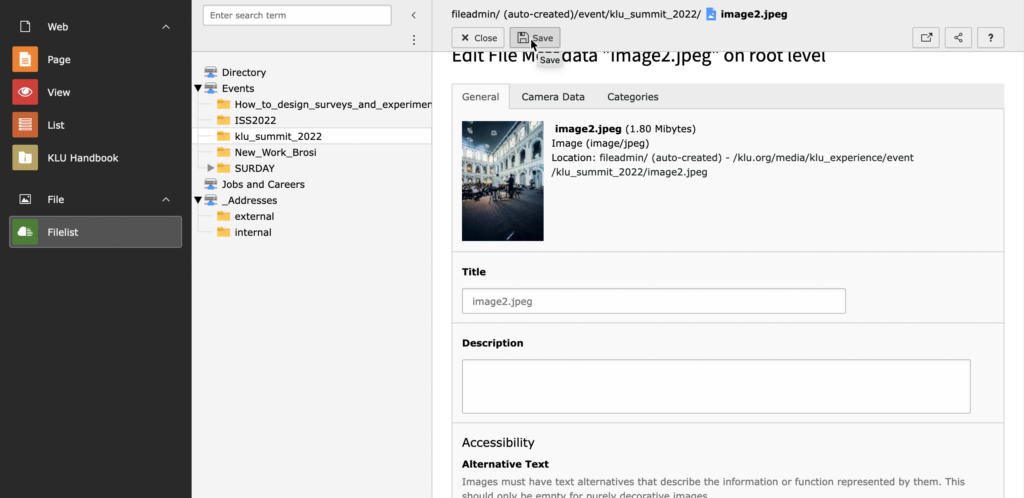
This tutorial shows how to create alt texts for images in TYPO3.
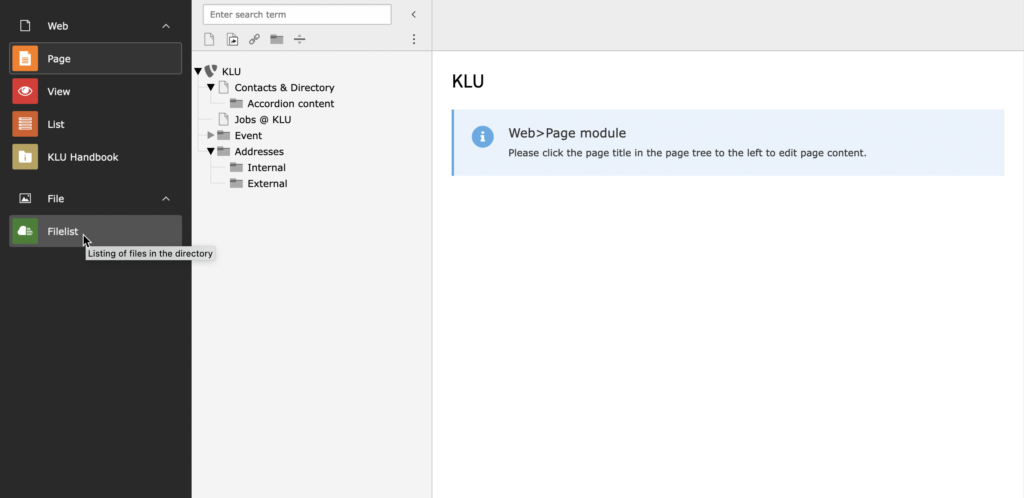
Enter the file list module
Click on “Filelist” in the left sidebar.
If you only see icons, you can toggle the labels with the small menu icon in the top left corner.
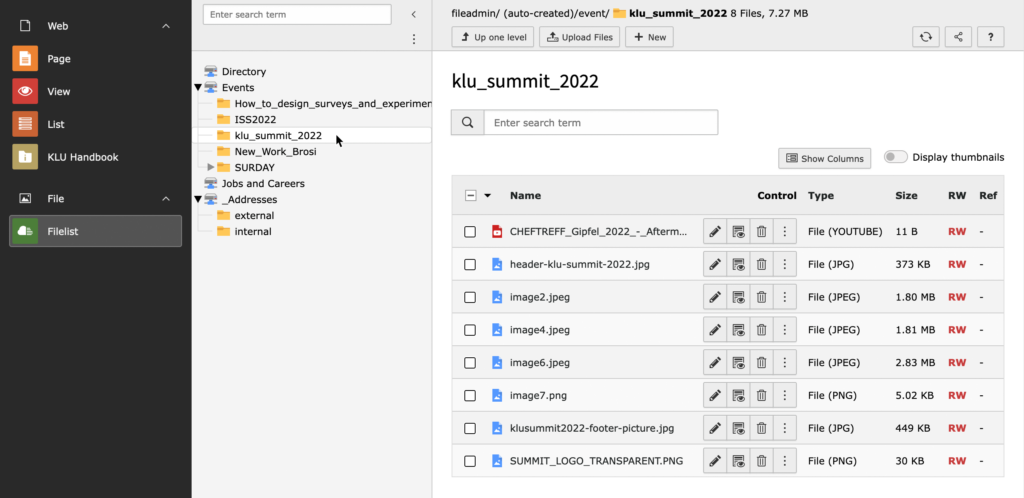
Navigate to the corresponding folder
Navigate to the folder containing the image with the missing alternative image text.
Note: The list of folders looks different for each user according to the assigned rights.
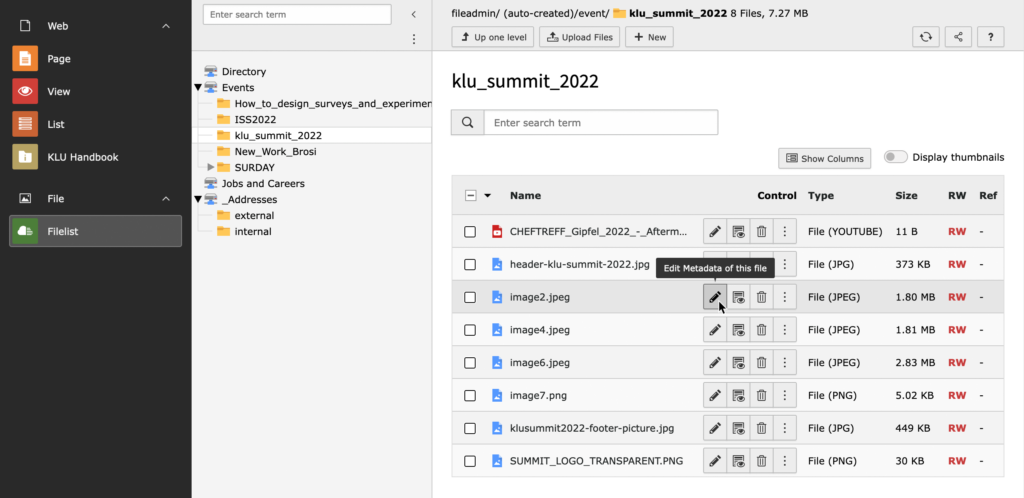
Edit and save the alternative text
After you have found the corresponding image file, click on the icon “Edit Metadata of this file”.
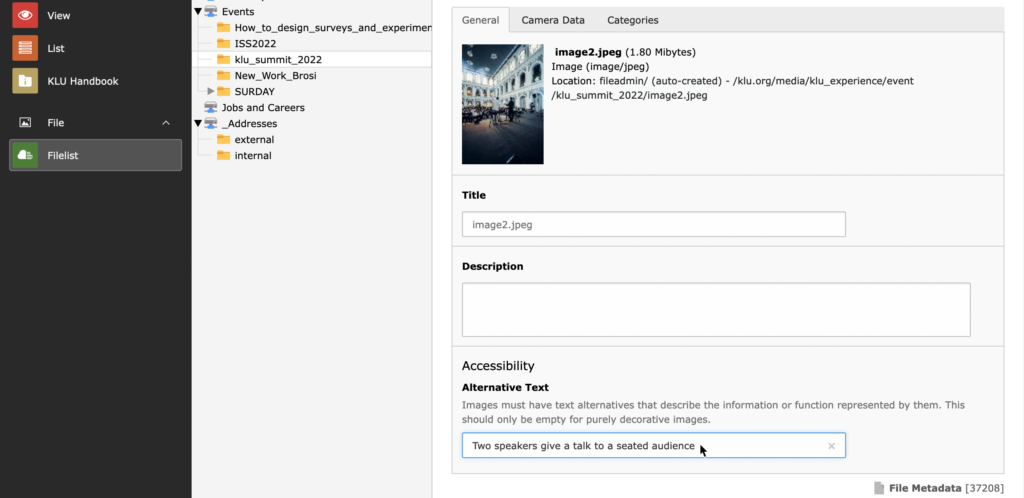
Scroll down to the “Accessibility” section and fill in the “Alternative Text” field with the appropriate image description.
The Alternative Text should be no more than one or two sentences long. Describe the image in a short and precise way so that someone who cannot see the image can visualize it. Alt texts are especially relevant for people with visual disabilities and for search engines.
Once you have done this, simply press the “Save” button above.