
Our accordion elements are fairly flexible in the type of content they can display. They just need a little configuration for you to be able to insert almost any kind of content element.
1. Add an Accordion Content Folder
If you do not feel comfortable with this step, simply ask one of our web admins to set this up for you.
Create a subfolder under the page you’re editing. This is where your accordion content will go from now on.
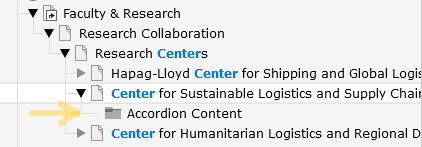
Click on the folder to open it. If the Accordion Content page looks empty, you might have to switch to the List View.
2. Add Your Own Content Elements
From here on out, it’s very similar to how you would add a new content element to any other page. Simply click one of the (+) buttons to add a new record / content element.
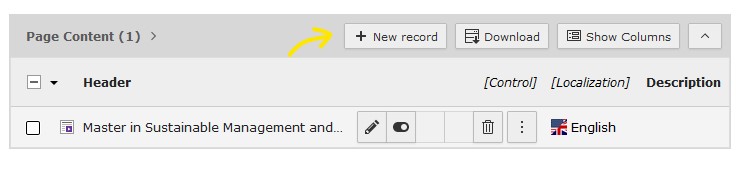
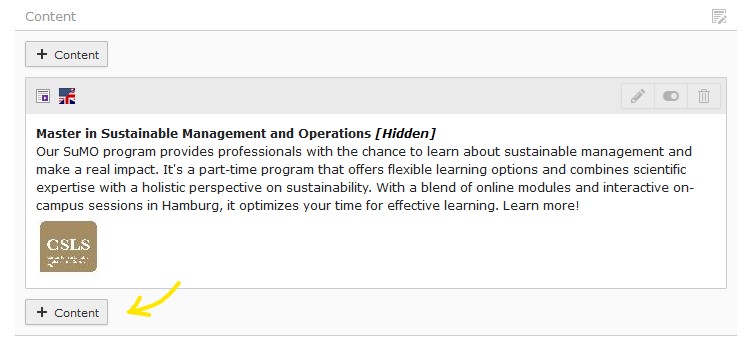
Now it’s up to you to upload your images, write texts, whatever it is you need. For this example I’ve chosen a Text/Media element. I wanted to have a text on the left side and an image on the right side that would show within the collapsible Accordion.
3. Display your Accordion Content
Now that you’ve written up your content, let’s go back to the actual Accordion on your page. (Not the folder! It should be the page just above the folder.)
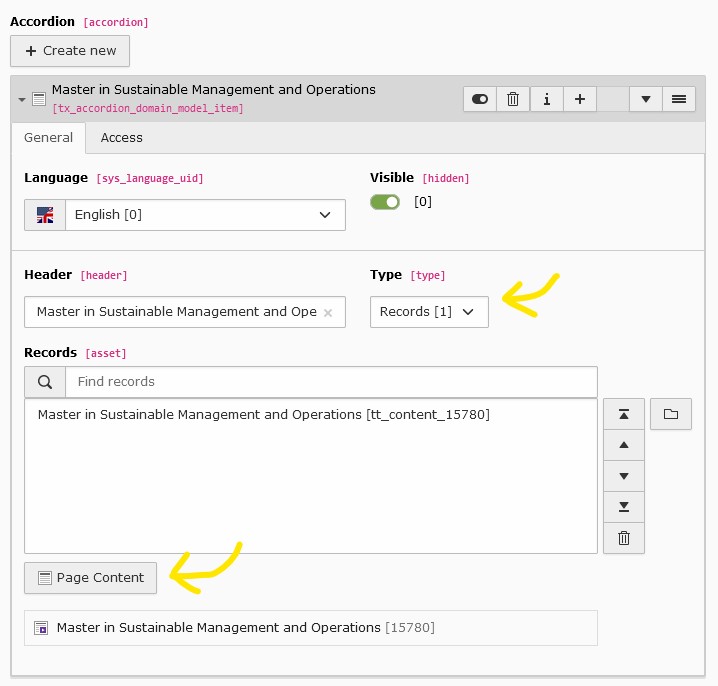
Create a new element using the (+) Create new button.
Now for the most important bit: from the Type dropdown, choose Records.
This allows you to pick any content element (also called record) and display it here. Use the Page Content button and a pop-up window will open where you can directly navigate to your Accordion Content folder and select your element.
4. You’re Done!
Save your changes and you’re done. You’ve added your own custom Accordion content.