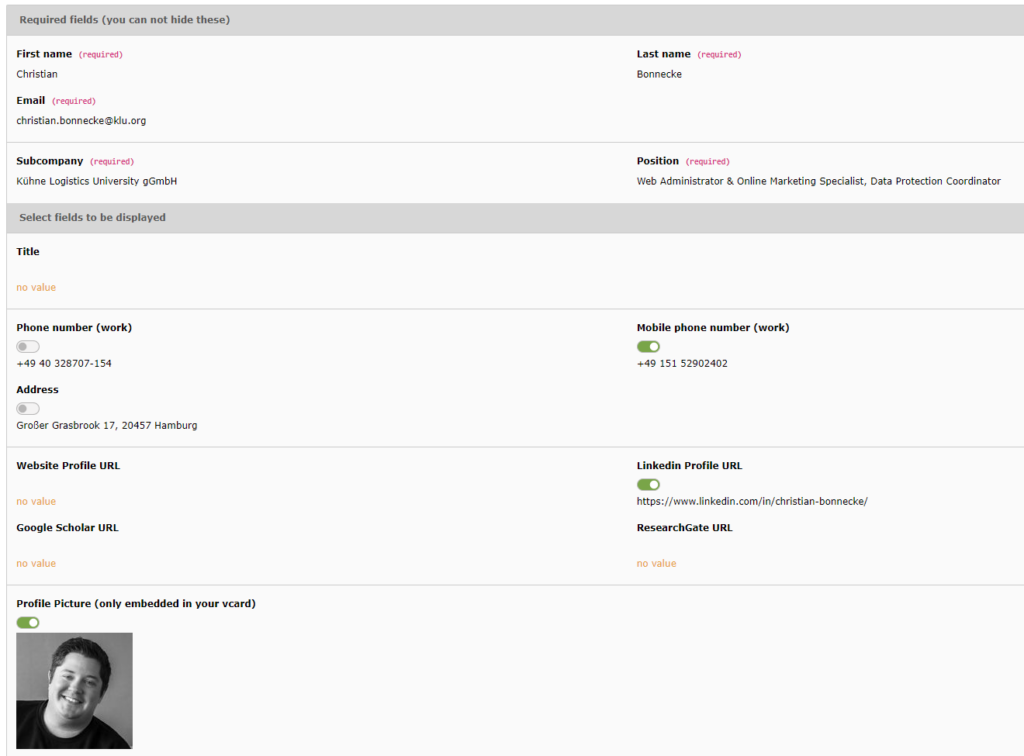
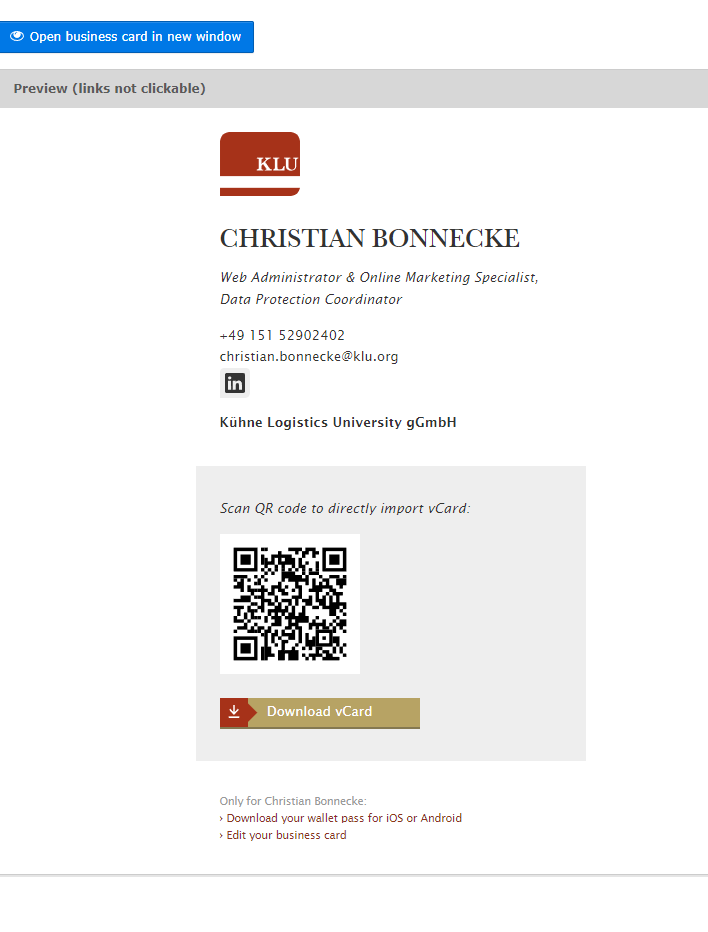
As a KLU employee, you automatically have a digital business card with the required fields listed further below already inserted. So you don’t necessarily have to edit the business card if you are happy with the standard version – you can simply get the link to your digital business card from Personio and use it.
If you already have a Typo3 login, you can use it as usual and configure your business card there. Scroll to this section.
If you were not a Typo3 user before:
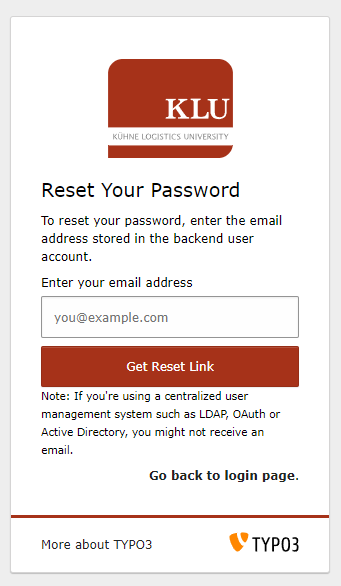
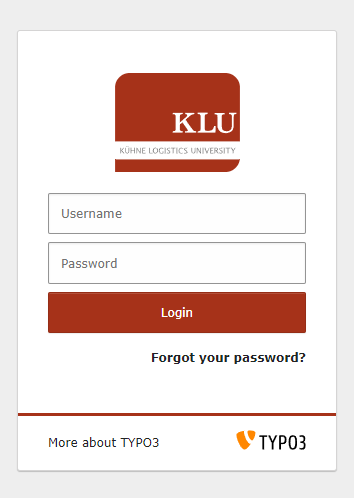
To log in, open https://www.klu.org/typo3/login/password-reset/forget and enter your KLU e-mail address. Then click on “Get Reset Link”. In the next step please check your inbox and follow the link in the email to set a secure password. You can then log in to https://www.klu.org/typo3/ using your user name, which is composed as follows:
First letter first name.last name
In my case this would be: c.bonnecke (from Christian Bonnecke).
…and the password you entered previously to configure your business card.
After the login
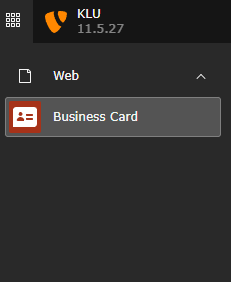
…click on the business card icon in the selection on the left-hand side.
In the next step, you can select which optional content you would like to display on the business card and send as a vcard with the QR code. All you have to do is click on the corresponding sliders. The standard fields cannot be edited. On the right-hand side you will see a live preview of your business card. You can also open your finished business card from there. It can be accessed via the URL combination “www.klu.org/business-card/your email address”. In my case, this is www.klu.org/business-card/christian.bonnecke@klu.org.
We extract all data from your business card from Personio. If desired details are missing on the business card, such as your LinkedIn profile, you can enter them in Personio. They can then be selected on the business card.
By clicking on “Download your wallet pass for iOS or Android” below your digital business card, you can add your digital business card to your wallet.