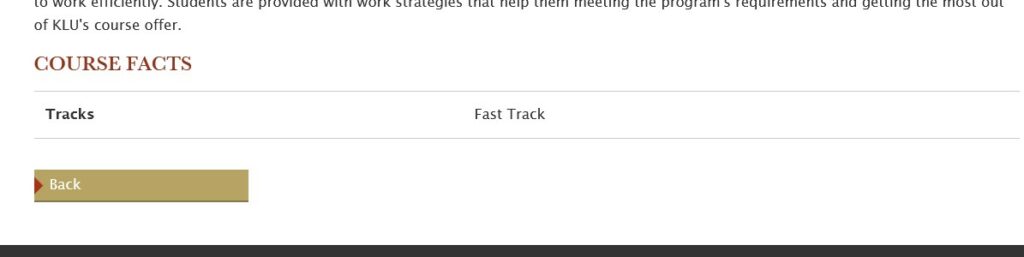
Click on the course you want to update. This will open its detailed overview, including, among others, content such as the course description and degree.
Scroll down until you find the content field called “Track”.
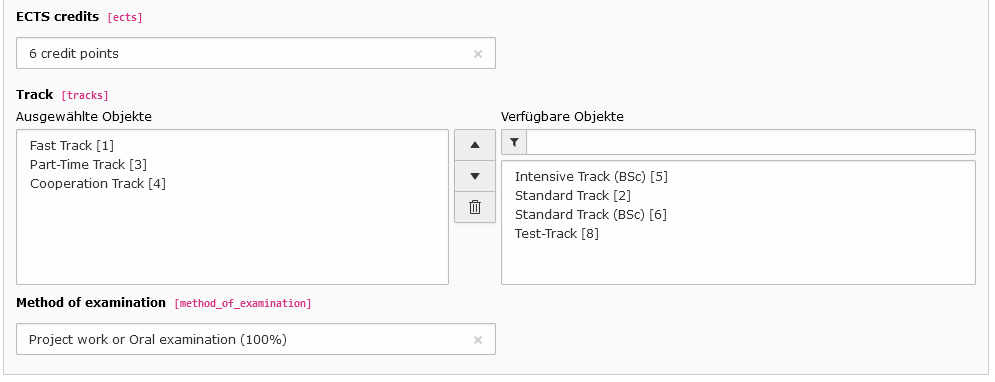
Add: On the left side are the currently selected and displayed tracks for this course. If you want to add a new track, you can do so by choosing a track from the right selection menu.
Remove: To delete a track from the list, click on the name in the left list and use the trash can symbol in the middle to move it back into the right list.
Add a new Track type
Do you want to update the tracks or add a completely new one? This is easily done. In the page tree, go to “Curriculum (Courses)”. You will see several lists, such as the courses and degrees. If you keep on scrolling down, you will also find a list of tracks.
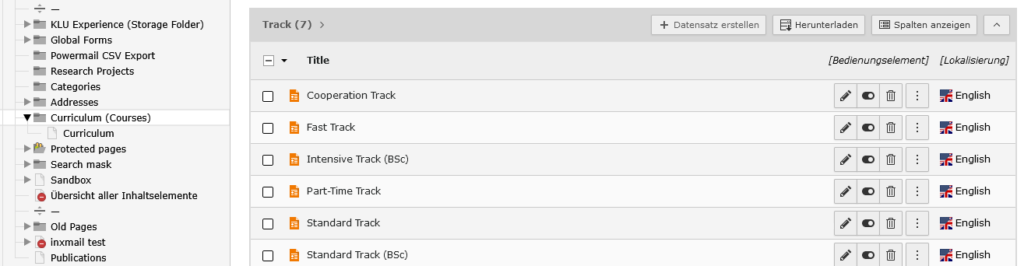
Edit existing track: simply click on an existing track to open the detailed view for editing.
Add new track: Click on “Datensatz erstellen” to create a new track. The track will be added to the list of selectable tracks automatically.